iPad light painting
17 Sep 2010
BERG did a brief image video for Dentsu London. It involves using iPads, long term expsure and stop motion.
BERG did a brief image video for Dentsu London. It involves using iPads, long term expsure and stop motion.
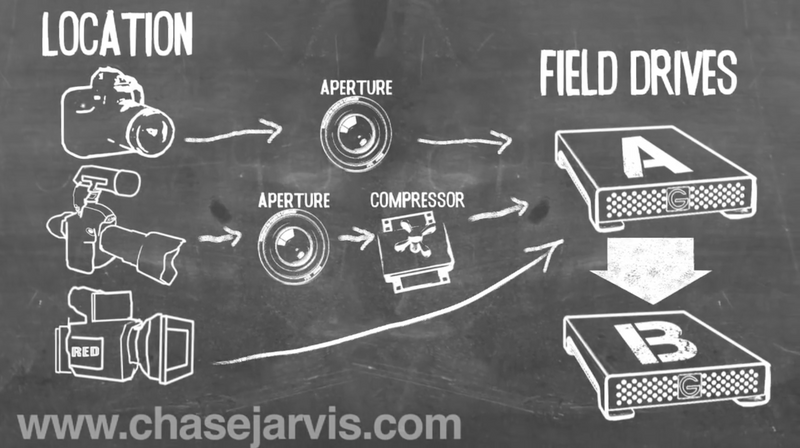
Chase Jarvis and his crew share some insights about their workflow from camera to final product - always with data redundancy in mind.

An amazing timelapse of what went down in Iceland.
Sometimes it might be necessary to chop up a large file into several parts (e.g. to place it on drives that are to small for the whole file). Keep in mind that corruption to any of the parts will result in a corrupt file once it is stiched back together.
To split a large file:
split -b 1m /path/to/large/file /path/to/output/file/prefix-b defines the size of the chunks (1m stands for 1 megabyte). Please refer to man split for all the options the tool offers.
This will give you a bunch of files whose names start with the defined prefix and a incremental suffix (starting with aa depending how many parts need to be created).
To join the parts back into one file:
cat prefix* > new_filenameBe careful with these commands, you can lose a lot of data quickly! Be mindful of the required disk space for any of those operations!
With Unix tools its pretty straight forward to create and play back images of hard drives.
Create an image of a harddrive:
dd if=/dev/hda of=/mnt/hdb1/myimage.imgWrite the image back onto the harddrive:
dd if=/mnt/hdb1/myimage.img of=/dev/hdawget -k -K -E -r -l 10 -p -N -F -nH -w 2 <http://website.com/>-k: convert links to relative-K: keep an original versions of files without the conversions made by wget-E: rename html files to .html (if they don’t already have an htm(l) extension)-r: recursive… of course we want to make a recursive copy-l 10: the maximum level of recursion. if you have a really big website you may need to put a higher number, but 10 levels should be enough.-p: download all necessary files for each page (css, js, images)-N: Turn on time-stamping.-F: When input is read from a file, force it to be treated as an HTML file.-nH: By default, wget put files in a directory named after the site’s hostname. This will disabled creating of those hostname directories and put everything in the current directory.-w: Be a good neighbor and wait between requests (in seconds) to not overwhelm the serverVia StackOverflow
I followed an outdated tutorial to mount my hardrives in the fstab with their assigned names (like /dev/hda1). I found out the hard way that those names can change at any time, e.g. when plugging the harddrive into a different slot on the controller. I learned that it’s much safer to do this by labelling the harddrives and referencing those labels when mouting them.
First give your harddrive or partition a name:
sudo e2label /dev/sda1 big_mamaNow you can use the label in your /etc/fstab (Add other parameters as needed):
LABEL=big_mama /Volumes/big_mama ext3An uglier solution would be to reference the drives by their UUIDs but it will make fstab a lot less readable and editing it after a while might get confusing.
The upside of this is: If you hook up a new harddrive to your controller or if you swap them, the system will still mount them into the right directories.
Overall dig is an invaluable tool that can help you debug all sorts of DNS related situations, ranging from “Why’s my server not reachable” to “Why does Google Mail not accept my mails” (e.g. when it comes to MX records). Here are some console tricks to dig up some infos about domains.
To find the authorative dns servers for a domain:
dig any example.comThis would tell us that these servers manage this domain:
ns1.dnsserver.com
ns2.dnsserver.com
ns3.dnsserver.com
Now we can find all CNAME and MX records of this domain (no A records!)
dig any example.com @ns1.dnsserver.comTo find out who owns the domain (this might not work, depending on the policy of the registrar):
whois example.comFinally, you might want to find out some things about an IP address:
To find who the owner of the address is:
whois 123.123.123.123To find the PTR (or reverse DNS) record:
nslookup 123.123.123.123Depending on your system, you put this into your .bashrc, .bash_login or .profile in your home directory.
export PS1="\[\033[1;34m\]\h\[\033[1;30m\]:\w \[\033[0;30m\]"The code starts with
\[\033[followed by one of these colour codes:
| Colour | Code |
|---|---|
| Black | 0;30 |
| Blue | 0;34 |
| Green | 0;32 |
| Cyan | 0;36 |
| Red | 0;31 |
| Purple | 0;35 |
| Brown | 0;33 |
| Blue | 0;34 |
| Green | 0;32 |
| Cyan | 0;36 |
| Red | 0;31 |
| Purple | 0;35 |
| Brown | 0;33 |
and ends with:
m\]There are some switches which can add some infos to your prompt (current path, date, time, etc.):
| \a | an ASCII bell character (07) |
| \d | the date in “Weekday Month Date” format (e.g., “Tue May 26”) |
| \h | the hostname up to the first ‘.’ |
| \H | the hostname |
| \n | newline |
| \r | carriage return |
| \s | the name of the shell, the basename of $0 (the portion following the final slash) |
| \t | the current time in 24_hour HH:MM:SS format |
| \T | the current time in 12_hour HH:MM:SS format |
| @ | the current time in 12_hour am/pm format |
| \u | the username of the current user |
| \w | the current working directory |
| \W | the basename of the current working directory |
| ! | the history number of this command |
| # | the command number of this command |
| $ | if the effective UID is 0, a #, otherwise a $ |
(via mactips.org)
To make folders, files and links coloured when you use ls, put this in one of the above mentioned files:
export LS_OPTIONS="--color=always --human"Sometimes there are messages stuck in the Exim mail queue and sometimes you might wish to look inside them. Exim is a complex beast, but it comes with plenty of tools to help you analyze the current situation.
To see how many mails are stuck in the queue and since when use:
mailqThis will output a list of message IDs; to look inside these messages use for the header
exim4 -Mvc [message-ID]for the body
exim4 -Mvb[message-ID]If these don’t work for you, try “exim” or “exim3” instead of “exim4”.
Here are a few more commands (via Florian Fritsch):
Get the mail queue as a table:
mailq | exiqsummGet the number of mails in the queue:
exim4 -bpcForce the delivery of emails that have a local recipient:
exim4 -qlFind out why a specific mail could not be delivered:
exim4 -v -M [message ID]Process the queue and send out the emails (if possible):
exim4 -qProcess the queue and send out the emails (verbose mode):
exim4 -qff -vSend out frozen emails:
exim4 -Mt [message ID]Delete all frozen emails:
mailq | awk '/frozen/{print "exim4 -Mrm "$3}' | /bin/shDelete a specific email from the queue:
exim4 -Mrm [message ID]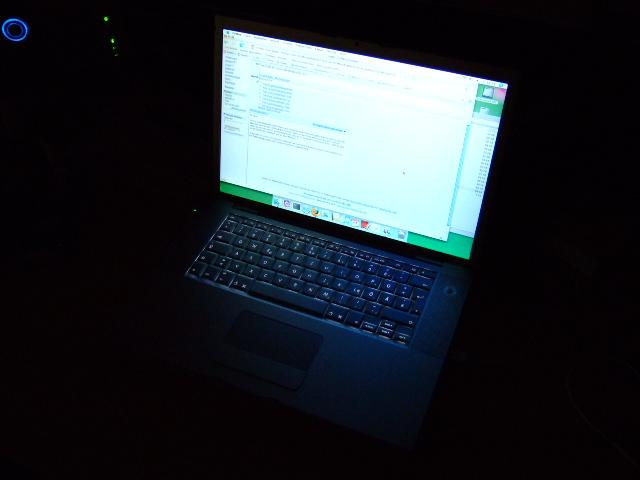
Since Apple transitioned to Intel chips I started thinking about bying a Macbook Pro. Professionally I’ve been using Macs off and on and I’ve owned an iPod for quite a while now. I was always impressed by the polish and attention to detail Apple products have. But the price and totally different hardware architecture always held me back from buying a Mac. For all its flaws, I really appreciate the versatility of Windows machines that allows me to work but also game on them. With Bootcamp I hope to get the best of both worlds.